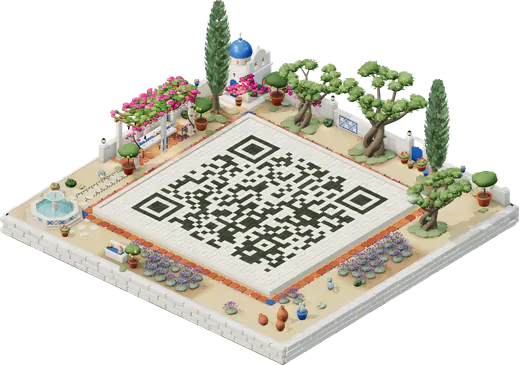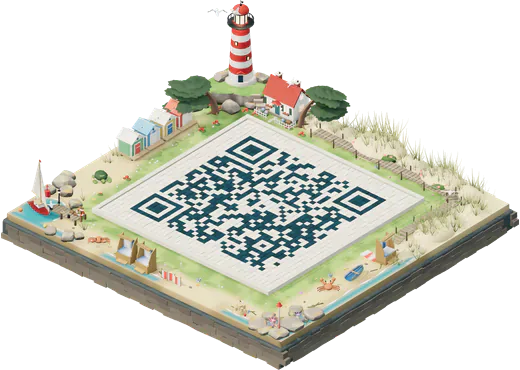


Set up a guest network first
Anyone who scans a Wi‑Fi code can read the password. Treat the password on the card as public, and keep guests off the network your smart lock, cameras, booking laptop and card reader use.
- Turn on the router’s guest network, or add a separate access point for guests, and switch on client isolation if the router offers it, so guests’ devices can’t see each other or yours.
- Give it a name guests recognise, such as “Olive House Guests”.
- Use WPA2, or WPA2/WPA3 mixed mode. WPA3-only networks still trip up some older phones and laptops.
- One name across the house. With a mesh system or several access points, keep one network name so one card works in every room.
More on security types in our guide to making a Wi‑Fi QR code.
A card in every room
Put the card where guests sit with their phones: the bedside table, the desk, the kitchen counter in a self-catering flat, and one inside the front door.
Guests read a bedside card from 30–50 cm, often in lamplight, so a code 3–4 cm wide is comfortable. It could print smaller: a typical guest network, such as WIFI:T:WPA;S:Olive House Guests;P:fig-terrace-2026;;, makes a version 5 code (37 × 37 modules) that is safe from 2 cm.
An A6 card (105 × 148 mm) or a 10 × 15 cm photo card fits most stands and frames. Put on it:
- the code, with “Scan to join the Wi‑Fi”;
- the network name and the password in text;
- who to message if it doesn’t work, and where the router is if a restart is the usual fix.
The network name in text, for everything that can’t scan
Some guests will type: their phone is older, its camera won’t focus in dim light, or they are joining from a laptop, an e-reader, a games console or the room’s TV, none of which can scan a code. So print the name and password clearly, in a plain typeface.
Choose a password that survives being read aloud and typed on a TV remote: words joined by dashes, with no characters that look alike, such as 0 and O or 1, l and I. A WPA password needs 8 to 63 characters; three short words and a number is plenty for a guest network.
Changing the password between stays
A Wi‑Fi code carries the password itself. Change the password and every card in the house is out of date. An editable QR code can’t help, because those work by forwarding a web link, and a Wi‑Fi code isn’t one. Decide how often to change it:
- Stable, with isolation. On an isolated guest network, the only risk from an old password is a past guest who comes back within range. Changing it each season, or after a problem, is enough for most guesthouses.
- Every stay. If you want each booking to have its own password, the card has to be cheap and quick to swap: printed at home, slid into a stand, with the code file kept ready. Send the new password in your check-in message as well, so guests have it before they arrive.
Write the print date on the back of each card in pencil, so an old one is easy to spot at turnover.
The welcome book and your listing
Make Wi‑Fi the first page of the welcome book or house manual: the code, the name and password in text, where the router is, and who to contact.
Booking platforms have a place for it too. Airbnb, for example, lets hosts add Wi‑Fi details to the arrival information guests see once their stay is confirmed. Fill it in, and update it whenever you change the password; platforms move their menus around, so check your listing settings for the current place.
Frame the card so it can be swapped
- Use a holder you can open: an acrylic sign holder, a small stand or a photo frame takes an A6 or 10 × 15 cm card that slides out in seconds.
- Check for glare. Acrylic and glass reflect, and a bedside lamp at an angle can hide the code from a camera. Scan through the holder, in the room, at night. A matte card or anti-glare acrylic helps.
- Don’t fix it for good if you will change the password: no laminating and screwing to the wall, no painting it on.
Test it like a guest
- On your test phone, forget the guest network first; a phone that is already connected makes any code look as if it works.
- Turn mobile data off, scan the card in the room with only the bedside light on, and check the phone joins.
- Open a web page, to check the connection works, not just that the phone joined.
- Try an iPhone and an Android phone. On Android, scan from the Wi‑Fi settings (the QR icon) as well as the camera app: your island shows a Wi‑Fi code square on, for that settings scanner.
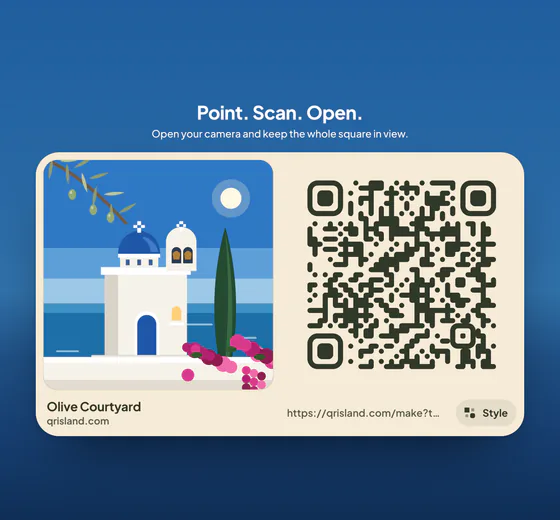
Make it in QR Island
In the studio, choose Wi‑Fi, type the network name, pick WPA/WPA2, WEP or Open, add the password, and tick Hidden network if it doesn’t broadcast its name. Free codes are made in your browser: the network name and password are never sent to our server. Get QR code shows the flat code without showing the password; download it as PNG or SVG, or open the free print sheet.
The island sign pack (+US$4.99, added to an Island pack) has a “Free Wi‑Fi” template: a PDF in each of its four styles with a poster, flyers, a table tent, cards and stickers, plus optional Wi‑Fi cards for the rooms that also show the network name and password. One caution: if you keep the island in Saved, the password is stored unencrypted in that browser, so don’t do that on a shared computer at reception.