
SVG or PNG?
A PNG is a grid of pixels: enlarge it past its size and the edges of the modules go soft. An SVG describes the code as shapes, so it stays sharp at any size, from a 2 cm sticker to a 2 m banner, and a designer can change its colours without redrawing it. A QR code is a natural fit for a vector file: it’s nothing but squares, or whichever shape you chose.
| Where it’s going | Use | Why |
|---|---|---|
| A print shop, or a design or layout app | SVG | Sharp at any size, and editable as shapes. |
| A banner, a window or a vehicle | SVG | Large prints show every blurred pixel. |
| A document, slide or email | PNG | Every app can place a PNG; some older ones can’t place an SVG. |
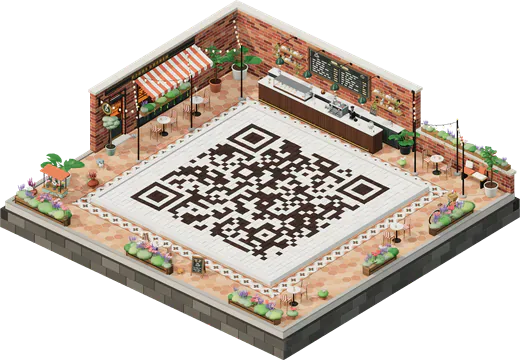
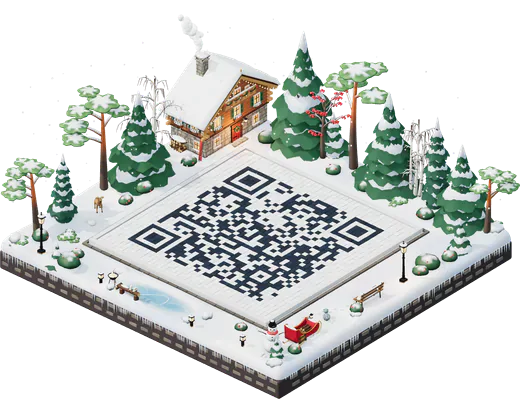
| A website or a social post | PNG, or the island picture | Screens show pixels anyway, and the 3D island makes a better post. |
QR Island’s free PNG is 1024 px wide and marked 300 dpi, so it opens at about 8.7 cm in print and layout apps: plenty for documents and small prints. For anything bigger, use the SVG.
How to download an SVG QR code
- Open the studio and type your link, or pick another code type such as Wi‑Fi or a contact card.
- Style it if you like: shape, colours and your logo all carry into the SVG.
- Press Get QR code. Under Free, choose SVG (or PNG). The download button beside Get QR code saves the PNG in one tap.
- Open the file in your layout app and check the margin round the code is still there before you place it.
How big to print it
A vector file can print at any size, but a code still has a smallest size that phones can read, and that depends on how much it holds. A short link or a Wi‑Fi code can print as small as 2 cm wide; a full contact card with an address needs about 5–6 cm; a very long link 8 cm or more. Airy module shapes such as dots, stars or hearts need about a centimetre more than squares.
For distance, aim for about a tenth of how far away people will stand: 3 cm on a card read at 30 cm, 10 cm on a counter sign read from a metre, 30 cm on a poster read from three metres. The size hint beside the studio’s message bar shows the smallest safe width for your code, and our QR code size guide explains the numbers.
Sending it to a print shop
- Send the SVG, or the Island pack’s PDF print sheet, rather than a screenshot.
- Keep the proportions. A code stretched wider than it is tall may not scan.
- Keep the margin clear. The light border round the code is part of it: no bleed, trim line or background picture over it.
- Check the colours after conversion. Print colours (CMYK) are duller than screen colours, and a code that was just dark enough on screen can come out too pale. Our guide to QR code colours shows how much contrast survives print.
- Ask for a proof and scan it with two phones before the full run, and choose matte paper if the code will sit under bright lights.
The free print sheet
If you’re printing at home or at the office, open Print sheet in Get QR code. It lays your code out on US Letter or A4 at true sizes, from its smallest safe size up, each with roughly how far away it scans, with crop marks and a scale bar so you can check the printer didn’t shrink the page. Print it at 100% (“actual size”), or save it as a PDF from your browser’s print dialog.
Print files without the credit
Free PNG and SVG files carry a small “Made with QR Island” line under the code. The Island pack (US$6.99, once) gives you the same design with no credit as a 4096 px PNG, an SVG and a PDF print sheet, adds gradients and “Scan me” frames, and decodes every code file before it’s delivered. QR Island doesn’t make EPS files; print software that takes EPS also takes SVG or PDF.