

What a Wi‑Fi QR code holds
A Wi‑Fi code is not a link. It is a short line of text in a format phone cameras recognise, and it carries the network details themselves. Nothing is looked up online when someone scans it, so it works where there is no mobile signal, which is often exactly why guests want your Wi‑Fi.
The text looks like this:
WIFI:T:WPA;S:Corner Cafe Guests;P:espresso-2026;;T:the security type:WPA,WEP, ornopassfor an open network.S:the network name (SSID), exactly as your router broadcasts it. Capital letters and spaces count.P:the password. Leave it out for an open network.H:truemarks a hidden network, one that doesn’t broadcast its name. Leave it out otherwise.
Each field ends with a semicolon and the whole line ends with two. Most scanners don’t mind the order of the fields. If the name or password contains a backslash, semicolon, comma, colon or double quote, put a backslash in front of that character: a password of tea;cake is written P:tea\;cake;. A name or password made only of hex digits (0–9 and A–F), such as CAFE2026, goes in double quotes so scanners don’t read it as a hex key. A good generator does all this for you; it matters when you type the line by hand.
WPA, WEP or open: which to choose
Choose the type your router actually uses. It’s on the router’s admin page, usually under Wireless or Wi‑Fi security.
- WPA covers WPA, WPA2 and the mixed WPA2/WPA3 mode most routers use today. It’s the right choice for almost every network. A WPA password has 8 to 63 characters, or exactly 64 hex digits.
- WEP is a standard from the late 1990s that can be cracked in minutes. Use it only if an old router gives you no choice. A WEP key has 5 or 13 characters, or 10 or 26 hex digits.
- Open (
nopass) is a network with no password. The code then only saves guests from finding the name in a list.
WPA3-only networks are the awkward case. Some generators write T:SAE for them, which recent Android phones understand, but support elsewhere is patchy. If your guest network is WPA3-only, test the code on an iPhone and an Android phone before printing, or switch the guest network to WPA2/WPA3 mixed mode.
Which phones can scan it
Guests don’t need an app. The camera built into recent phones reads Wi‑Fi codes:
- iPhone: the Camera app has read QR codes since iOS 11. Point it at the code and tap the “Join network” prompt.
- Android: from Android 10 on, most phones read Wi‑Fi codes in the camera app or Google Lens. Many also have a small QR icon beside “Add network” in the Wi‑Fi settings. Older Android phones may need a scanner app.
Tip for Android guests: scan from the Wi‑Fi settings (the QR icon), or with the camera app. That settings scanner can be fussier about a code turned on its corner, so QR Island shows a Wi‑Fi code’s island square on.
Scanner apps vary. A few show the code as plain text instead of offering to join, so the guest sees the password and has to type it. That isn’t a broken code, just a limited app.
Android 10 and later can also show a code for the network a phone is already on: open the Wi‑Fi settings, tap the network or its gear icon, then Share. It’s handy for a quick test, but remember that code holds your real password.
Hidden networks
If your network doesn’t broadcast its name, add H:true. The phone then knows to look for the network even though it isn’t in the list of networks nearby.
Hidden networks join less reliably from a code, because some phones and scanner apps ignore the flag. Hiding the name also adds very little security: phones that know a hidden network call out its name while searching for it, so anyone listening can learn it. For a guest network, letting it broadcast is usually the better trade.
Use a guest network
Anyone who scans the code can read the password. Most scanner apps display it, and phones can share a saved Wi‑Fi password with other phones. Treat the password on your sign as public.
So don’t put your main network on the sign, the one your card machine, till, cameras or office computers use. Most current routers have a guest network option. Turn it on, give it its own name and password, and if the router offers it, switch on client isolation (sometimes called “allow guests to see each other: off”), so devices on the guest network can’t reach each other or your own equipment.
A separate guest network also gives you a cleaner way to handle password changes.
When the password changes
A Wi‑Fi code carries the password itself. Change the password and every printed copy stops working. A dynamic (editable) QR code can’t fix this: those work by forwarding a short web link somewhere new, and a Wi‑Fi code isn’t a web link.
So plan for it instead:
- Keep the guest password stable. Change the main network’s password as often as you like. With client isolation on, the guest network’s password can stay the same for a year or more.
- Print the code on something cheap to replace: a card in a stand, an insert in a frame or a sticker on a table tent, rather than the menu itself or a painted wall.
- Keep the file. Save the code, or the settings you made it with, so a reprint takes minutes. Put the date of the next planned password change in your calendar.
- Print the details in text too. The network name and password under the code help guests whose phones won’t scan, and you’ll notice at once if the sign is out of date.
Print it and test it properly
A Wi‑Fi code holds little text, so it can print small: about 2 cm (0.8 in) wide is enough for a table card read from 20–30 cm away. For a sign on a wall, make the code about a tenth of the distance people scan from, so 10 cm for a sign read from a metre away. Leave a clear light margin around it, at least four of the code’s small squares wide. Our guide to QR code size for printing has the numbers.
Then test it before you print a batch, and test it the right way:
- On the test phone, forget the network first. If the phone is already connected, the code will seem to work whatever it contains.
- Turn mobile data off, so you know the phone joined your Wi‑Fi rather than using its own connection.
- Scan the printed proof, not the screen, from the distance and in the light guests will have.
- Try an iPhone and an Android phone. For a hidden or WPA3-only network, try an older phone too.
- Open a web page, to check the connection works and not just that the phone joined.
If a phone can’t join, the usual causes are a typo in the network name (capital letters count), the wrong security type, or a password copied with a space at the end.
Make it in QR Island
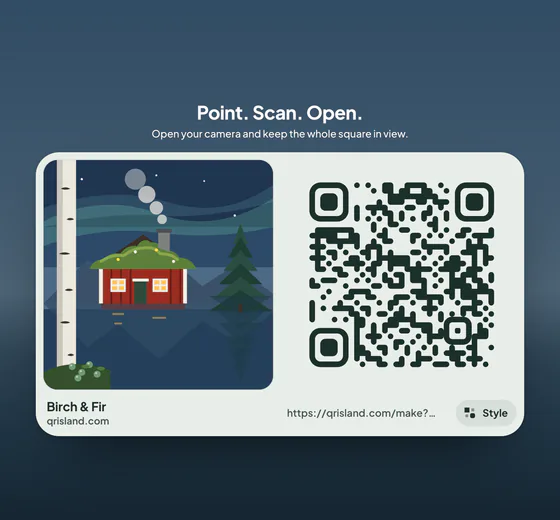
In the QR Island studio, choose Wi‑Fi in the message bar, type the network name, pick WPA/WPA2, WEP or Open, add the password, and tick Hidden network if it doesn’t broadcast. The studio writes the WIFI: line with the escaping above, and checks that the password is a length the security type allows.
Free codes are made in your browser: the network name and password are never sent to our server. Get QR code shows the flat, print-ready code without showing the password, and from there you can download it as PNG or SVG, or open the print sheet, which lays it out at true sizes from its smallest safe size up. The island sign pack (+US$4.99, added to an Island pack) has a “Free Wi‑Fi” template with a poster, flyers, a table tent, cards, stickers and a slide for your TV or screen in all four sign styles (no story or post, so the password isn’t posted), plus optional Wi‑Fi cards that also show the network name and password. One caution: if you keep the island in Saved, the password is stored unencrypted in that browser, so don’t do that on a shared computer.