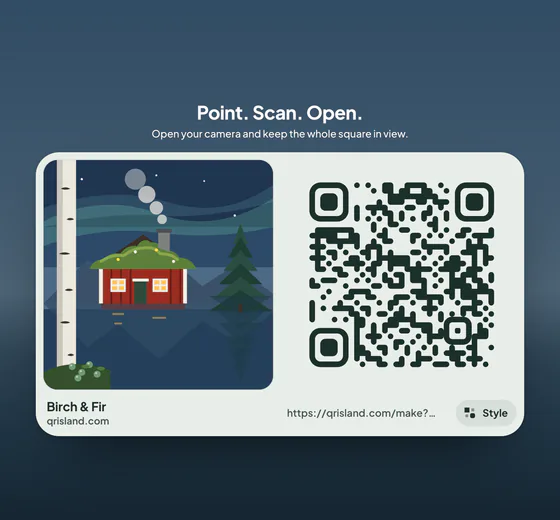


On an iPhone
- Open the Camera app, in photo mode.
- Point it at the code so the whole square is on screen, with a little space around it.
- Hold still for a moment. A link appears near the code, showing the website’s name.
- Tap it to open the page.
The Camera app has read QR codes since iOS 11, so any iPhone kept up to date in the last several years does this. It handles more than links: a Wi‑Fi code offers to join the network, a contact code to add the contact, an event code to add it to the calendar. iPhones also have a Code Scanner you can add to Control Centre; how you add it depends on your version of iOS.
If nothing appears for a code you know works, check that QR scanning hasn’t been switched off in the Camera settings.
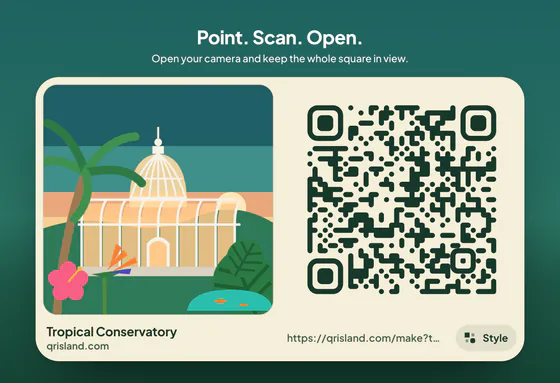
On an Android phone
Most recent Android phones read QR codes in the camera app: point it at the code and tap the link that appears. Some makers put this behind a setting or a lens button in the camera, so if the camera ignores a code, look in its settings for QR scanning.
Google Lens reads codes on most recent Android phones. It’s often built into the camera, it’s in the Google app (the Lens icon in the search bar), and many phones have a QR scanner tile in Quick Settings, the panel you pull down from the top of the screen. For Wi‑Fi codes, Android 10 and later also has a scanner in the Wi‑Fi settings, next to the option to add a network.
On older phones a scanner app does the job. Choose one from a well-known developer that asks for few permissions: some free scanner apps are mostly adverts.
Scanning a code in a screenshot or photo
You can’t point a phone’s camera at its own screen, so a code someone sent you, or one in a screenshot, needs another route:
- Google Lens reads a code in a saved picture. Open Lens in the Google app on an iPhone or Android phone and choose the picture from your gallery, or on Android open the picture in Google Photos and use its Lens button.
- On an iPhone, recent versions of iOS can often read a code in a photo or screenshot: open it in Photos and press and hold on the code.
- Another screen. Open the picture on a computer or a second phone and scan it with the camera as usual.
Scanning a code on a computer screen works well. Turn the brightness up, and if wavy lines appear across the code, move the phone back a little.
When nothing happens
- Move back. Too close and the camera can’t focus. Get the whole code in the frame with a margin round it.
- Hold still for a second or two, and tap the code on screen to focus on it.
- Add light, but tilt the phone or the paper if the torch or a ceiling lamp makes a bright patch on glossy paper.
- Wipe the lens. A fingerprint smear blurs fine detail.
- Check the distance. A code scans from up to about ten times its width: a 3 cm code from about 30 cm, a 10 cm code from about a metre.
- Try Google Lens, or another phone.
If two phones can’t read it, the problem is probably the code, not you. It may be printed too small for what it holds, have too little contrast or a cropped margin, be a light code on a dark background that some phones can’t read, or be damaged. If it scans but the page won’t load, the phone has no signal or the link inside the code no longer works.
What different codes do
| The code holds | The phone offers to |
|---|---|
| A web link | Open it in the browser |
| Wi‑Fi details | Join the network |
| A contact card | Add the contact |
| A calendar event | Add it to the calendar |
| A phone number | Call it |
| An SMS or email | Start a message, already addressed |
| A location | Open it in the map app |
| Plain text | Show it, copy it or search the web for it |
With the built-in camera on recent phones, nothing happens until you tap: scanning a code doesn’t open, join or call anything by itself. Some scanner apps open links straight away, one more reason to use the camera you already have.
Check where it goes before you tap
Criminals use QR codes too, because people trust a printed square more than a link in a text message. Common tricks are a sticker over the real code on a parking meter or a charging point, a code in an email asking you to sign in, and a fake missed-delivery card through the door.
- Read the address before you tap. Is it the organisation you expect? Watch for misspellings, extra words in the domain, and link shorteners that hide where you’re going.
- Look at the code itself on anything public. A sticker over a printed code is a warning sign.
- Don’t enter a password or card details on a page you reached from a code unless you’re sure of it. To pay for parking, use the operator’s app or the machine; to sign in, type the address yourself.
- Join Wi‑Fi only from codes in places you trust, such as the café you’re sitting in.
Make it in QR Island
If you’re on the other side, making a code for other people to scan, the QR Island studio makes one free in your browser. Press Get QR code, then Full screen: it shows your code flat on a card, like the one above, so you can scan it with your own phone straight from the screen before you download it as PNG or SVG or print the free print sheet. Then test the print as well: our guide on how to test a QR code has the checklist.